'%20fill='%23fff'%3e%3cpath%20d='M24%20364.337V24h141.909c25.481%200%2046.833%203.601%2064.056%2010.803%2017.222%207.191%2030.183%2017.279%2038.882%2030.24s13.049%2027.972%2013.049%2045.041c0%2012.961-2.72%2024.513-8.148%2034.645-5.429%2010.142-12.906%2018.534-22.431%2025.174-9.526%206.651-20.548%2011.299-33.069%2013.953v3.325c13.732.661%2026.451%204.383%2038.134%2011.134%2011.684%206.762%2021.077%2016.155%2028.168%2028.17%207.092%2012.025%2010.638%2026.231%2010.638%2042.628%200%2018.281-4.647%2034.601-13.952%2048.939-9.305%2014.35-22.762%2025.648-40.381%2033.908-17.607%208.248-38.992%2012.377-64.143%2012.377H24zm82.258-200.414h45.534c8.975%200%2016.947-1.497%2023.929-4.493s12.432-7.312%2016.374-12.961c3.931-5.65%205.902-12.466%205.902-20.439%200-11.409-4.041-20.384-12.135-26.926-8.082-6.53-18.995-9.801-32.738-9.801h-46.866v74.62zm0%20134.109h50.853c17.839%200%2030.987-3.381%2039.466-10.131%208.479-6.762%2012.708-16.178%2012.708-28.247%200-8.755-2.049-16.309-6.145-22.686-4.096-6.365-9.922-11.298-17.443-14.789-7.532-3.491-16.561-5.231-27.089-5.231h-52.339v81.095l-.011-.011zM388.865%2024v340.337h-81.256V24h81.256zm181.618%20230.159V109.082h81.091v255.255h-77.435v-47.529h-2.665c-5.649%2015.616-15.263%2028.004-28.829%2037.145-13.578%209.14-29.941%2013.71-49.102%2013.71-17.398%200-32.683-3.986-45.864-11.97-13.181-7.973-23.433-19.14-30.745-33.489s-11.023-31.165-11.133-50.437V109.082h81.256v146.739c.11%2013.854%203.766%2024.767%2010.968%2032.74s17.002%2011.96%2029.413%2011.96c8.082%200%2015.372-1.795%2021.847-5.407%206.486-3.601%2011.628-8.865%2015.45-15.781%203.821-6.927%205.737-15.318%205.737-25.174h.011zm224.376%20115.002c-26.704%200-49.718-5.286-69.044-15.869-19.337-10.583-34.181-25.703-44.532-45.371-10.362-19.668-15.537-43.069-15.537-70.215s5.208-49.445%2015.614-69.212c10.418-19.779%2025.096-35.174%2044.037-46.197s41.261-16.53%2066.962-16.53c18.17%200%2034.787%202.83%2049.851%208.48s28.08%2014.007%2039.048%2025.086%2019.501%2024.734%2025.591%2040.966%209.14%2034.81%209.14%2055.756v20.273H694.145v-47.199h146.226c-.11-8.633-2.159-16.342-6.145-23.104s-9.448-12.047-16.374-15.869-14.866-5.726-23.841-5.726-17.233%202.015-24.424%206.057c-7.202%204.052-12.906%209.537-17.112%2016.452-4.207%206.927-6.431%2014.757-6.652%2023.512v48.025c0%2010.417%202.049%2019.525%206.145%2027.332s9.911%2013.876%2017.454%2018.193c7.532%204.317%2016.506%206.486%2026.924%206.486%207.201%200%2013.731-1.002%2019.612-2.995%205.869-1.993%2010.912-4.923%2015.119-8.81%204.206-3.876%207.367-8.645%209.47-14.294l74.616%202.158c-3.105%2016.728-9.889%2031.264-20.361%2043.62s-24.182%2021.937-41.129%2028.743c-16.947%206.816-36.559%2010.219-58.825%2010.219l.011.033z'/%3e%3c/g%3e%3cdefs%3e%3cclipPath%20id='A'%3e%3cpath%20fill='%23fff'%20transform='translate(24%2024)'%20d='M0%200h892v345.161H0z'/%3e%3c/clipPath%3e%3c/defs%3e%3c/svg%3e)
Database
View, group, sort, filter, and edit workspace records in an interactive table.
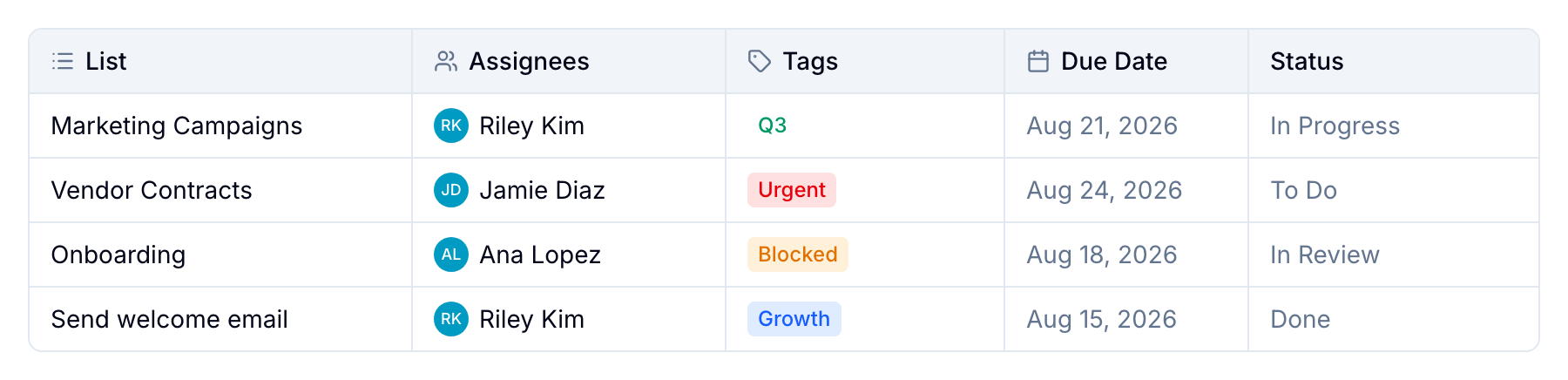
The Database view displays workspace records in a spreadsheet-style table. Use it to edit fields, organize records, and review large datasets.
Group records
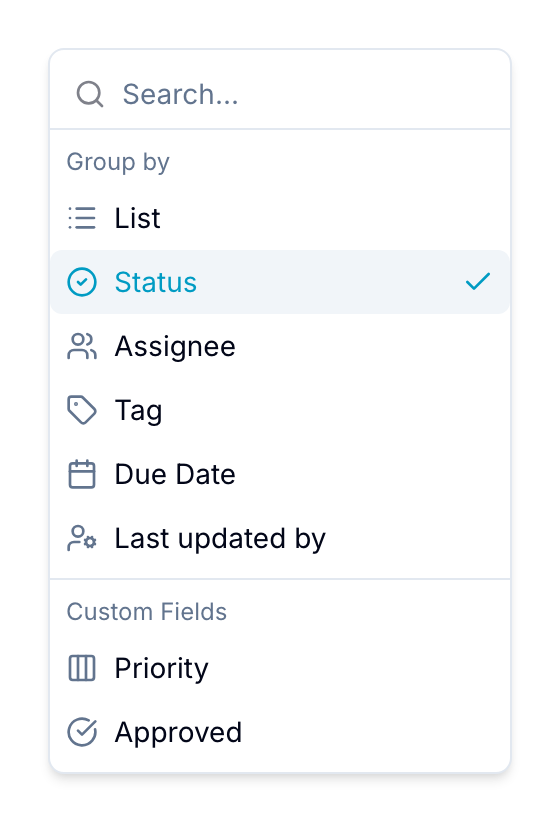
Select Group in the toolbar, then select a field. You can group by list, status, assignee, tag, due date, or a supported custom field.
Supported custom fields include select, date, and lookup fields.
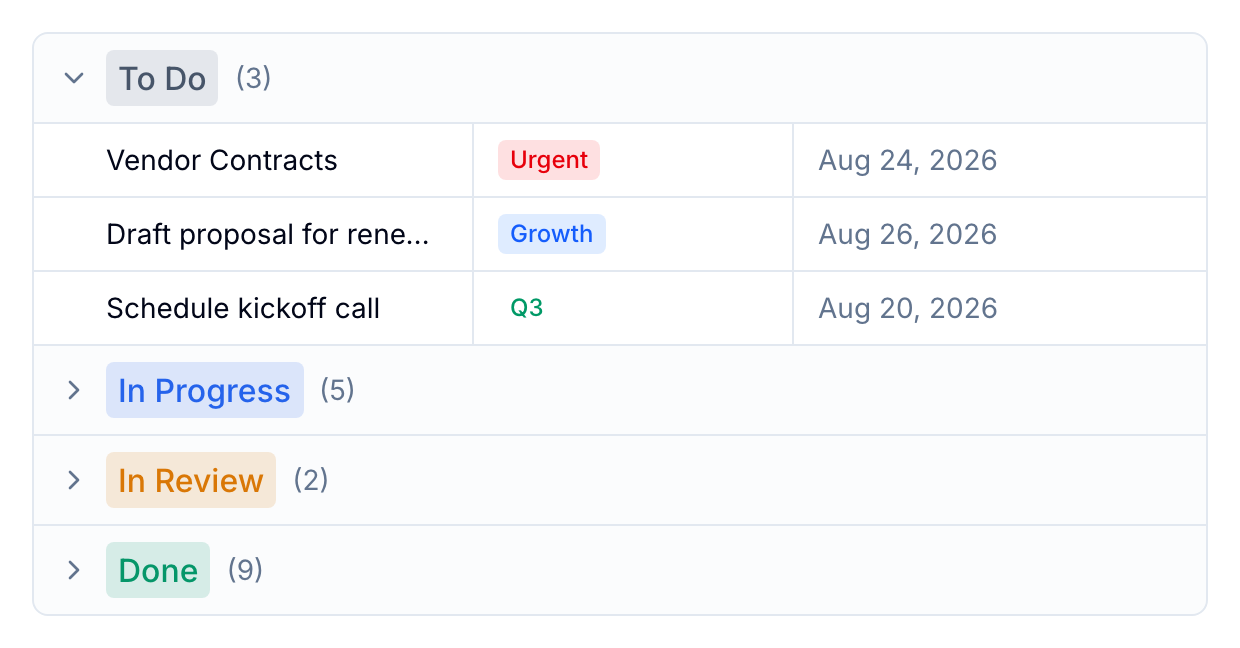
Blue places the records into collapsible groups for the selected field.
For a date field, you can group by date ranges or relative periods such as overdue, today, and upcoming. You can also configure how far backward and forward Blue displays groups.
Add nested groups
You can add up to three grouping levels. For example, group by status, then assignee, then tag.
Use the chain picker in Group to add, replace, or remove a level.
If a record belongs to multiple groups at one level, Blue counts it once in each applicable group. Blue adjusts the totals so the grouped breakdown remains consistent.
Add a record
- Select the quick-add row at the top of the table.
- Enter the record name.
- Press Enter. Blue creates the record without closing the Database view.
Edit and arrange columns
Each field appears as a column. Select a cell to edit its value.
Drag a column header to change the column order. Drag a column edge to change its width.
To rename a custom-field column, rename its custom field. You cannot rename default fields.
Select + in the table to add a custom-field column.
Scroll through records
The table uses infinite vertical scrolling. You can continue scrolling through datasets with tens or hundreds of thousands of records.
Open record details
Select a record to open its details panel. Right-click a record to open actions for renaming, assigning, tagging, setting due dates, and other changes.
Column totals
A sticky footer at the bottom of the table shows the selected calculation for each column. Available operations depend on the column type:
- Most columns provide Count empty and Count filled.
- Number fields provide Sum, Average, Min, Max, Median, and Range.
- Numeric formula fields provide Sum, Average, Min, and Max.
- Date fields provide Earliest, Latest, and Range.
- Select and country fields provide Unique. Custom fields of these types can also provide Most frequent.
- Checkbox fields provide checked and unchecked counts and percentages. The Status column uses complete and incomplete labels.
Open a column menu and select Summarize to choose an available operation. Blue recalculates totals when you filter, search, or edit records.
Blue remembers the selected operation for each column.
Sort and manage columns
Select a column header to sort records by that column. Select it again to reverse the direction, then select it once more to clear the sort.
The Database view sorts by one column at a time.
Right-click a column header to open its management options:
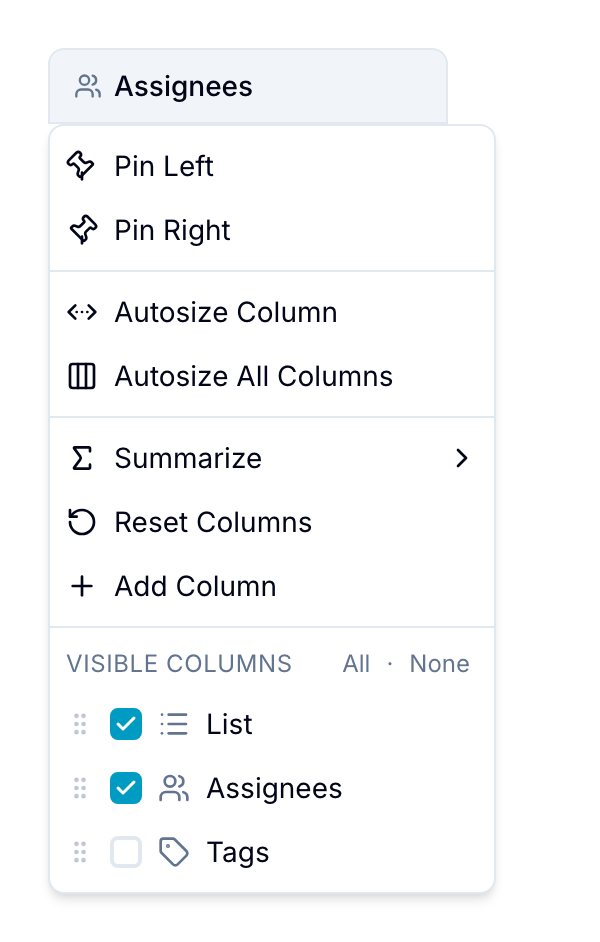
- Pin Left or Pin Right: Keep the column visible while you scroll horizontally.
- Autosize Column or Autosize All Columns: Resize one or all columns to fit their cell content.
- Summarize: Select a footer calculation from Column totals.
- Reset Columns: Restore the default column order, width, and visibility.
- Add Column: Open the field manager to add a custom-field column.
- Visible Columns: Show or hide columns. Use All or None to change all columns.
Show or hide columns
Open Visible Columns from a column header menu. Select the columns that you want the table to show.