Event Automations
Run actions after a record event or field change, with optional conditions that limit when the actions run.
Event automations run after a specific event, such as creating a record, completing a record, or changing a field value. Each automation belongs to one database.
Use Only if to require the affected record to match additional conditions before Blue runs the actions.
Plan requirements
Event automations are available on all plans. The Record is added to another workspace trigger, Add to workspace action, HTML email authoring, and automation chaining require Pro or Enterprise. Scheduled and conditional automations also require Pro or Enterprise.
Create an event automation
Workspace owners and administrators can manage automations.
- Open the Automations list of the database. See Open Automations.
- Select Create Automation > Event Automation.
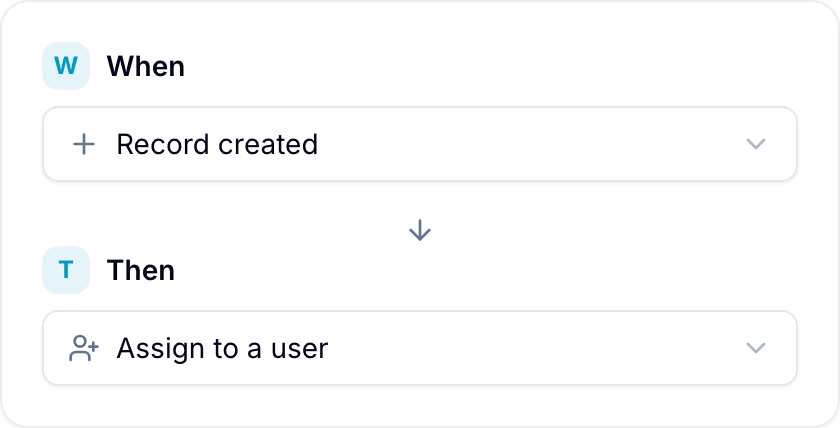
- In When, select a trigger.
- Set the options for that trigger, such as the field and values to watch.
- Optional: In Only if, add conditions that the record must also match.
- In Then, add one or more actions and configure each action.
- Select Create Automation. The automation waits for its next matching event.
Add Only if conditions
An event starts the check. Only if decides whether the actions can run for that event.
Select a field, operator, and value. Combine conditions with AND or OR as needed. Blue checks the record’s state after the triggering change and before the actions run.
- Leave Only if empty to run the actions whenever the selected event occurs.
- If the record does not match, Blue skips the actions for that event.
- A later change to an Only if field does not start this automation unless that change also matches its event trigger.
Example: notify the owner when an urgent record is completed
When: Record marked complete Only if: Priority is Urgent Then: Send an email to the owner.
Completing an urgent record sends the email. Completing a normal-priority record does not.
If you later change that completed record’s Priority to Urgent, this automation does not run. Its trigger watches for completion, not priority changes.
If you mark the record incomplete and then complete it again while Priority is Urgent, the automation can run again.
Event or conditional automation?
Choose an event automation when a particular action or change must happen first. Choose a conditional automation when entering or leaving a combined state should start the actions.
| Behavior | Event automation with Only if | Conditional automation |
|---|---|---|
| Starts when | The selected event occurs and the record matches the filter. | The record starts or stops matching the saved conditions. |
| A different condition field changes | Does not run unless the selected event also occurs. | Can run if the change makes the record enter or leave the matching state. |
| The record keeps matching | Can run again for each new matching event. | Does not run again until the relevant matching-state transition occurs. |
For the example above, a conditional automation with Completed is checked AND Priority is Urgent can run when either completion or priority changes make both conditions true.
Conditional automations also support conditions on related records. See Plan requirements for access requirements.
Manage the automation
Use the automation’s toggle to pause or resume it. See Introduction for names, groups, permissions, and chaining.
For date-based event triggers, see Relative Due Date Triggers. To run on a recurring schedule, use a scheduled automation.