Download Apps
Open the web application or install it on a desktop, phone, or tablet.
Web application
Open your deployment’s application address in a major web browser. Use the address supplied by your organization. Blue-hosted addresses and app store links are listed under Blue-hosted applications.
Desktop app
Install the web application in a separate window with a Chromium-based browser, such as Google Chrome, Brave, Microsoft Edge, Opera, Vivaldi, or Chromium.
The installed application supports desktop shortcuts, fullscreen mode, and native desktop notifications. It receives web application updates automatically.
- Open a supported browser.
- Open your deployment’s application address and sign in.
- Find the install icon on the right side of the address bar. It typically looks like a small computer or a plus symbol.
- Select the install icon and follow the browser prompts.
The installed application opens in a separate window.
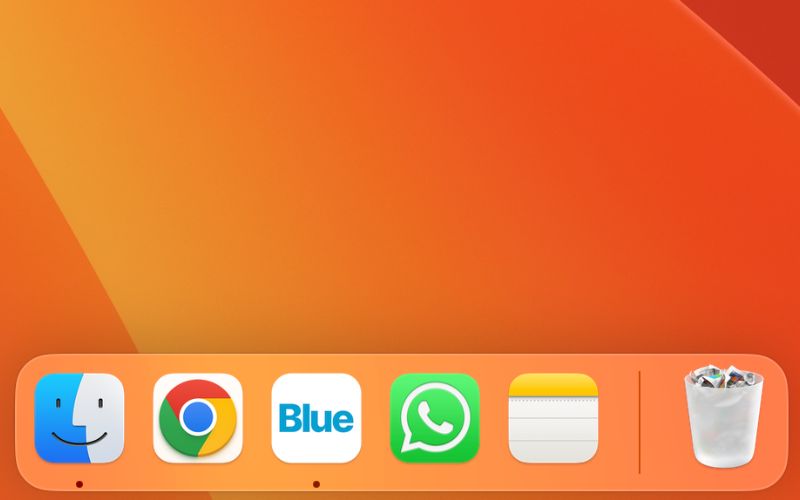
Keep the application in the Mac Dock
- Open the installed application.
- Right-click or Control-click its Dock icon.
- Select Options > Keep in Dock.
The icon remains in the Dock after you close the application.
Create a Windows desktop shortcut
- Open the system location where the application is installed.
- Right-click its icon.
- Select Create shortcut.
- Place the shortcut on your desktop.
Double-click the shortcut to open the application.
Mobile applications
Native mobile application availability depends on your deployment. Use the application approved by your organization.
The native mobile applications do not include all web application features. You can view boards and calendars, and review and reply to comments. The iPad application uses a layout designed for a larger tablet screen.
PWA
A progressive web application (PWA) is a website that you can install on a device. Install the PWA if you cannot use an app store or need the web application’s full functionality.
PWA on iOS
Use Safari to install a PWA on iOS.
- Open Safari.
- Enter your deployment’s application address.
- After the application loads, select Share, the rectangle with an upward arrow.
- Select Add to Home Screen.
- Enter a name for the shortcut.
- Select Add.
- Select the new icon on your home screen to open the PWA.
PWA on Android
- Open Chrome.
- Enter your deployment’s application address.
- Select the three-dot menu in the upper-right corner.
- Select Install or Add to Home screen. The option can also appear as a downward arrow inside a box.
- Confirm by selecting Install or Add.
- Select the new icon on your home screen or in the app drawer to open the PWA.
Blue-hosted applications
For Blue-hosted accounts:
- Web application: blue.app.
- iPhone and iPad: Blue on the App Store.
- Android: Blue on Google Play.
For a white-label or dedicated deployment, confirm the application address and approved downloads with your administrator.
Blue desktop installation media
The video and screenshot show Blue branding. The written desktop installation steps above also apply to a branded deployment.