'%20fill='%23fff'%3e%3cpath%20d='M24%20364.337V24h141.909c25.481%200%2046.833%203.601%2064.056%2010.803%2017.222%207.191%2030.183%2017.279%2038.882%2030.24s13.049%2027.972%2013.049%2045.041c0%2012.961-2.72%2024.513-8.148%2034.645-5.429%2010.142-12.906%2018.534-22.431%2025.174-9.526%206.651-20.548%2011.299-33.069%2013.953v3.325c13.732.661%2026.451%204.383%2038.134%2011.134%2011.684%206.762%2021.077%2016.155%2028.168%2028.17%207.092%2012.025%2010.638%2026.231%2010.638%2042.628%200%2018.281-4.647%2034.601-13.952%2048.939-9.305%2014.35-22.762%2025.648-40.381%2033.908-17.607%208.248-38.992%2012.377-64.143%2012.377H24zm82.258-200.414h45.534c8.975%200%2016.947-1.497%2023.929-4.493s12.432-7.312%2016.374-12.961c3.931-5.65%205.902-12.466%205.902-20.439%200-11.409-4.041-20.384-12.135-26.926-8.082-6.53-18.995-9.801-32.738-9.801h-46.866v74.62zm0%20134.109h50.853c17.839%200%2030.987-3.381%2039.466-10.131%208.479-6.762%2012.708-16.178%2012.708-28.247%200-8.755-2.049-16.309-6.145-22.686-4.096-6.365-9.922-11.298-17.443-14.789-7.532-3.491-16.561-5.231-27.089-5.231h-52.339v81.095l-.011-.011zM388.865%2024v340.337h-81.256V24h81.256zm181.618%20230.159V109.082h81.091v255.255h-77.435v-47.529h-2.665c-5.649%2015.616-15.263%2028.004-28.829%2037.145-13.578%209.14-29.941%2013.71-49.102%2013.71-17.398%200-32.683-3.986-45.864-11.97-13.181-7.973-23.433-19.14-30.745-33.489s-11.023-31.165-11.133-50.437V109.082h81.256v146.739c.11%2013.854%203.766%2024.767%2010.968%2032.74s17.002%2011.96%2029.413%2011.96c8.082%200%2015.372-1.795%2021.847-5.407%206.486-3.601%2011.628-8.865%2015.45-15.781%203.821-6.927%205.737-15.318%205.737-25.174h.011zm224.376%20115.002c-26.704%200-49.718-5.286-69.044-15.869-19.337-10.583-34.181-25.703-44.532-45.371-10.362-19.668-15.537-43.069-15.537-70.215s5.208-49.445%2015.614-69.212c10.418-19.779%2025.096-35.174%2044.037-46.197s41.261-16.53%2066.962-16.53c18.17%200%2034.787%202.83%2049.851%208.48s28.08%2014.007%2039.048%2025.086%2019.501%2024.734%2025.591%2040.966%209.14%2034.81%209.14%2055.756v20.273H694.145v-47.199h146.226c-.11-8.633-2.159-16.342-6.145-23.104s-9.448-12.047-16.374-15.869-14.866-5.726-23.841-5.726-17.233%202.015-24.424%206.057c-7.202%204.052-12.906%209.537-17.112%2016.452-4.207%206.927-6.431%2014.757-6.652%2023.512v48.025c0%2010.417%202.049%2019.525%206.145%2027.332s9.911%2013.876%2017.454%2018.193c7.532%204.317%2016.506%206.486%2026.924%206.486%207.201%200%2013.731-1.002%2019.612-2.995%205.869-1.993%2010.912-4.923%2015.119-8.81%204.206-3.876%207.367-8.645%209.47-14.294l74.616%202.158c-3.105%2016.728-9.889%2031.264-20.361%2043.62s-24.182%2021.937-41.129%2028.743c-16.947%206.816-36.559%2010.219-58.825%2010.219l.011.033z'/%3e%3c/g%3e%3cdefs%3e%3cclipPath%20id='A'%3e%3cpath%20fill='%23fff'%20transform='translate(24%2024)'%20d='M0%200h892v345.161H0z'/%3e%3c/clipPath%3e%3c/defs%3e%3c/svg%3e)
Filters
Show only workspace records that match selected tags, assignees, dates, text, or field conditions.
Filters limit the records shown in a view. They affect only your view and do not change what other users see.
Filters are available in the toolbar of every view.
Use quick filters
The toolbar provides these quick filters:
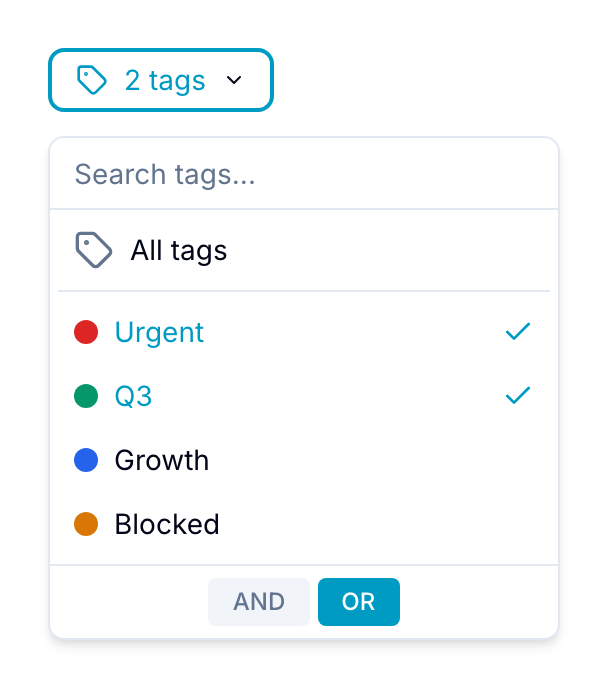
- Tags: Show records with selected tags. With two or more tags, use AND to require all tags or OR to require any tag.
- Assignees: Show records assigned to selected users. This filter supports AND, OR, and Unassigned.
- Due Date: Show records due today, yesterday, this or last week, this or last month, or in a custom range.
- Search: Search record titles, list names, and unique IDs. Search supports exact and fuzzy matches.
Add advanced filters
Use advanced filters to match default or custom fields.
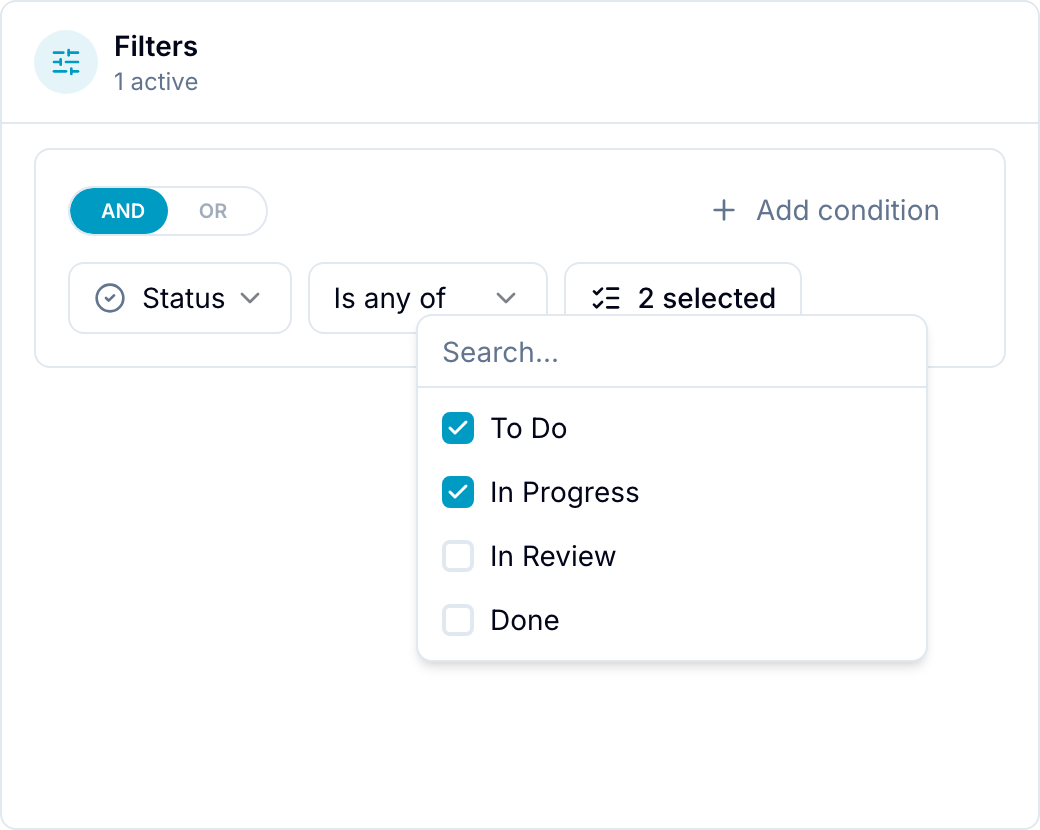
- Select Filters in the toolbar.
- Select a field.
- Select an operator, such as Equals, Not Equals, Contains, or Is Empty.
- Enter or select the comparison value. Blue updates the records shown in the view.
Use relative date filters
Relative date filters move with the calendar. For example, This month always means the current calendar month when Blue loads records or creates an export. It does not keep the month in which you created the filter.
Date fields support these calendar periods:
- This, Last, or Next day, week, month, quarter, or year
- In the last or In the next number of days, weeks, months, quarters, or years
Blue uses your timezone for interactive filters. This week also uses your selected first day of the week.
These filters work with the default Due date, Created date, and Completed at fields, custom Date fields, and Lookup fields that return a date. Due-date ranges and custom Date ranges match records whose date span overlaps the selected period.
Select a specific date or custom range when the filter must remain fixed.
Combine conditions and groups
Use AND when all conditions must match. Use OR when any condition can match.
Select Add Group to create another top-level group with its own AND or OR setting. You can also select AND or OR between groups. For example:
Status is Open AND (Assignee is Me OR Tag contains Urgent)
Filter groups are siblings. You cannot create a group inside another group.
Filter linked records
Advanced filters support Reference fields and Lookup fields:
- For a Reference field, select one or more linked records as the comparison value.
- For a Lookup field, filter the value that the field is configured to return. Available operators depend on that value’s field type.
To filter records by a linked Customer’s tag, first configure a Lookup field that returns the Customer tag. Then filter that Lookup field for Enterprise.
Combine filters
Add multiple quick and advanced filters to narrow the results. Blue shows active filters at the top of the view.
Filter persistence
Filters remain active when you switch between Board, Database, Calendar, Timeline, and Map views.
Each workspace also retains its filters after a page reload or return visit. To reuse a named filter configuration, create a Saved View.