'%20fill='%23fff'%3e%3cpath%20d='M24%20364.337V24h141.909c25.481%200%2046.833%203.601%2064.056%2010.803%2017.222%207.191%2030.183%2017.279%2038.882%2030.24s13.049%2027.972%2013.049%2045.041c0%2012.961-2.72%2024.513-8.148%2034.645-5.429%2010.142-12.906%2018.534-22.431%2025.174-9.526%206.651-20.548%2011.299-33.069%2013.953v3.325c13.732.661%2026.451%204.383%2038.134%2011.134%2011.684%206.762%2021.077%2016.155%2028.168%2028.17%207.092%2012.025%2010.638%2026.231%2010.638%2042.628%200%2018.281-4.647%2034.601-13.952%2048.939-9.305%2014.35-22.762%2025.648-40.381%2033.908-17.607%208.248-38.992%2012.377-64.143%2012.377H24zm82.258-200.414h45.534c8.975%200%2016.947-1.497%2023.929-4.493s12.432-7.312%2016.374-12.961c3.931-5.65%205.902-12.466%205.902-20.439%200-11.409-4.041-20.384-12.135-26.926-8.082-6.53-18.995-9.801-32.738-9.801h-46.866v74.62zm0%20134.109h50.853c17.839%200%2030.987-3.381%2039.466-10.131%208.479-6.762%2012.708-16.178%2012.708-28.247%200-8.755-2.049-16.309-6.145-22.686-4.096-6.365-9.922-11.298-17.443-14.789-7.532-3.491-16.561-5.231-27.089-5.231h-52.339v81.095l-.011-.011zM388.865%2024v340.337h-81.256V24h81.256zm181.618%20230.159V109.082h81.091v255.255h-77.435v-47.529h-2.665c-5.649%2015.616-15.263%2028.004-28.829%2037.145-13.578%209.14-29.941%2013.71-49.102%2013.71-17.398%200-32.683-3.986-45.864-11.97-13.181-7.973-23.433-19.14-30.745-33.489s-11.023-31.165-11.133-50.437V109.082h81.256v146.739c.11%2013.854%203.766%2024.767%2010.968%2032.74s17.002%2011.96%2029.413%2011.96c8.082%200%2015.372-1.795%2021.847-5.407%206.486-3.601%2011.628-8.865%2015.45-15.781%203.821-6.927%205.737-15.318%205.737-25.174h.011zm224.376%20115.002c-26.704%200-49.718-5.286-69.044-15.869-19.337-10.583-34.181-25.703-44.532-45.371-10.362-19.668-15.537-43.069-15.537-70.215s5.208-49.445%2015.614-69.212c10.418-19.779%2025.096-35.174%2044.037-46.197s41.261-16.53%2066.962-16.53c18.17%200%2034.787%202.83%2049.851%208.48s28.08%2014.007%2039.048%2025.086%2019.501%2024.734%2025.591%2040.966%209.14%2034.81%209.14%2055.756v20.273H694.145v-47.199h146.226c-.11-8.633-2.159-16.342-6.145-23.104s-9.448-12.047-16.374-15.869-14.866-5.726-23.841-5.726-17.233%202.015-24.424%206.057c-7.202%204.052-12.906%209.537-17.112%2016.452-4.207%206.927-6.431%2014.757-6.652%2023.512v48.025c0%2010.417%202.049%2019.525%206.145%2027.332s9.911%2013.876%2017.454%2018.193c7.532%204.317%2016.506%206.486%2026.924%206.486%207.201%200%2013.731-1.002%2019.612-2.995%205.869-1.993%2010.912-4.923%2015.119-8.81%204.206-3.876%207.367-8.645%209.47-14.294l74.616%202.158c-3.105%2016.728-9.889%2031.264-20.361%2043.62s-24.182%2021.937-41.129%2028.743c-16.947%206.816-36.559%2010.219-58.825%2010.219l.011.033z'/%3e%3c/g%3e%3cdefs%3e%3cclipPath%20id='A'%3e%3cpath%20fill='%23fff'%20transform='translate(24%2024)'%20d='M0%200h892v345.161H0z'/%3e%3c/clipPath%3e%3c/defs%3e%3c/svg%3e)
Board
Organize records in kanban-style columns, then move, group, sort, filter, and update them from their cards.
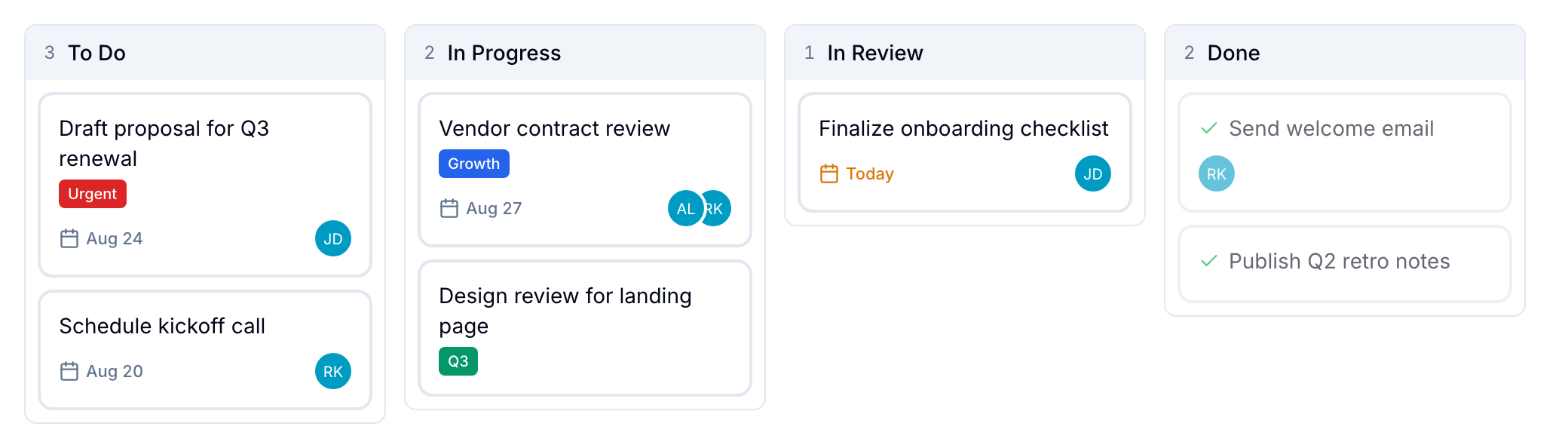
The Board is Blue’s default workspace view. It displays records as cards in columns, with each list representing a process step.
Common uses include:
- Project management, from backlog to completion
- Sales pipelines, from lead to closed deal
- Hiring processes, from sourced candidate to hired candidate
Use lists as process steps
Arrange lists from left to right to show the order of your process. Give each list the name of its step.
Drag a record between lists to move it to a different process step.
Use record cards
A record card can show its name, assignees, due date, tags, cover image, checklist progress, comment count, time tracking, and custom fields.
Drag a card within its list to change its position.
To create one record, select + Add Record at the top or bottom of a list.
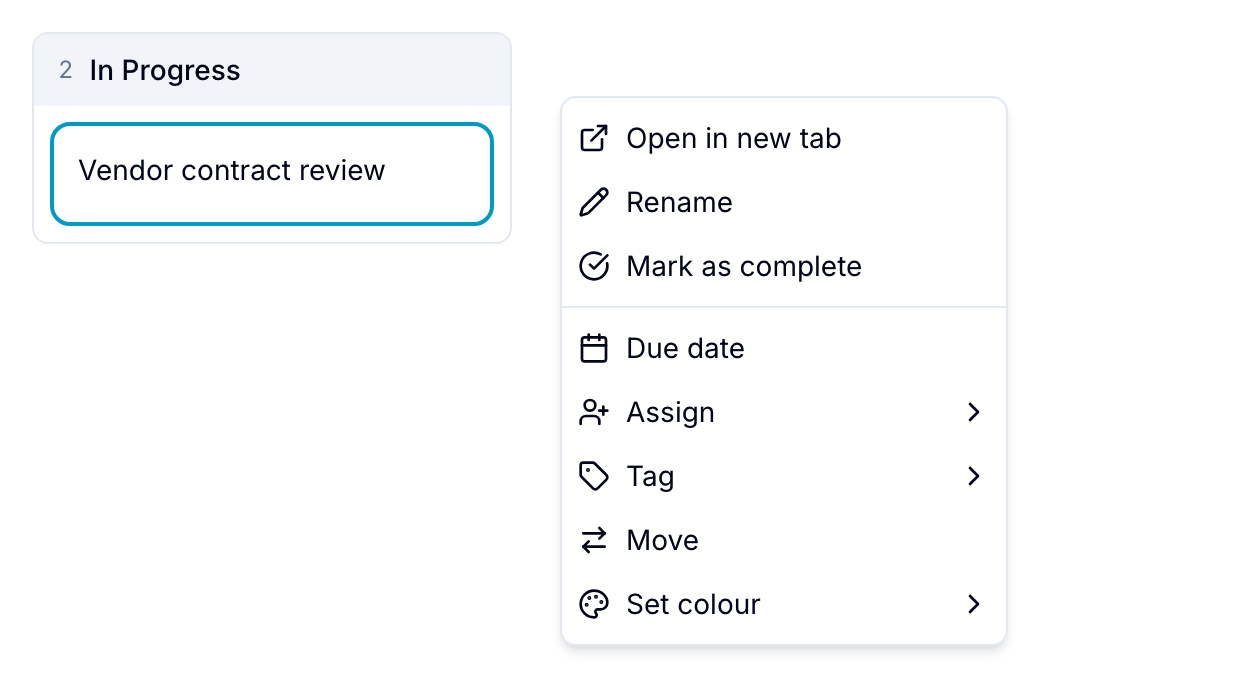
Right-click a card to open these record actions:
- Open in New Tab: Open the full record in a new browser tab.
- Rename: Change the record name.
- Mark as Complete: Mark the record as complete or incomplete.
- Due Date: Set or change the due date.
- Assign: Assign one or more users, or assign by role.
- Tag: Add or remove tags, or create a tag.
- Move: Move the record to another workspace.
- Set Colour: Change the card’s background color.
- Copy: Duplicate the record.
- Copy URL: Copy a link to the record.
- Move to Top: Move the record to the top of its list.
- Pin to top: Keep the record above unpinned cards in its column.
- Delete: Delete the record.
If you select multiple cards, the menu provides applicable bulk actions. These actions include assigning, tagging, changing completion, setting a color, and deleting.
The menu also sets custom field values across the selection. Toggle a Checkbox field, select an option in a Single Select or Multiple Select field, click a Button field, or select Set “<field>” all to enter one value for the other field types. Only fields with Show in bulk actions turned on in their configuration appear, and the submenu requires the Pro plan. These actions are also available from the board column menu, and from the right-click menu in the Table, Calendar, and Timeline views.
Change all records in a list
List actions can add tags, assign users, change completion, or move all records between lists. Read Lists for all list actions.
Select and drag multiple cards
Hold ⌘ on Mac or Ctrl on Windows and Linux, then click cards to select them individually. Hold ⇧ to select a range.
Drag any selected card to move all selected cards to another list or position. Right-click the selection to apply available bulk actions.
Group records
Select Group by to group records by a field instead of their list. Supported fields include assignee, tag, due date, and select, date, or lookup custom fields.
- Lookup field grouping: Group by a value from a linked record. For example, group records by a linked Customer’s tier.
- Custom date grouping: Select Actual or Relative date columns. Blue creates one column for each day in the configured range.
Sort cards
Select Sort, then select one or more sort fields and their directions. Available fields include due date, created date, manual order, numbers, and assignees.
Blue applies the sort within each column.
To sort one column differently, open the column menu and select Sort, then select a field and a direction. A column sort uses one field and replaces the board sort for that column only. Select Manual (drag order) to remove the override and follow the board sort again.
Column sorts apply to every board grouping, not only to lists. Saved views keep them. Blue removes them when you change the grouping, because the columns are then different.
Pin cards
Right-click a card and select Pin to top. The card remains above unpinned cards in its column.
Pinning applies to every grouping, including list, status, assignee, tag, due date, and custom fields. Pinned cards use their positions within the column to determine their order.
- To pin or unpin multiple cards, select them before you open the context menu.
- To unpin one card, select its pin badge or select Unpin from its context menu.
Configure card content
Open the Board view settings to configure cards:
- Compact Cards: Hide covers and reduce metadata to fit more cards on the screen.
- Fields on Front: Show selected custom fields without opening a record.
- Cover images: Show or hide cover images.
- Clickable contact fields: Call a phone number, send an email, or open a URL from a card’s visible fields.
Update a field by dragging
Dragging updates the grouped field for single-select, checkbox, due-date, and custom-date groupings. For example, moving a card from High to Low changes its single-select Priority field to Low.
Dragging does not update other custom-field or lookup groupings.
For a single-select custom field, you can update an off-screen value without dragging. Right-click the card, select Move to option, then select the new value.
Filter cards
Use filters to show records that match criteria such as assignee, tag, or due date. Filters change the visible cards, not the lists themselves.
Read Filters for all filter options.