'%20fill='%23fff'%3e%3cpath%20d='M24%20364.337V24h141.909c25.481%200%2046.833%203.601%2064.056%2010.803%2017.222%207.191%2030.183%2017.279%2038.882%2030.24s13.049%2027.972%2013.049%2045.041c0%2012.961-2.72%2024.513-8.148%2034.645-5.429%2010.142-12.906%2018.534-22.431%2025.174-9.526%206.651-20.548%2011.299-33.069%2013.953v3.325c13.732.661%2026.451%204.383%2038.134%2011.134%2011.684%206.762%2021.077%2016.155%2028.168%2028.17%207.092%2012.025%2010.638%2026.231%2010.638%2042.628%200%2018.281-4.647%2034.601-13.952%2048.939-9.305%2014.35-22.762%2025.648-40.381%2033.908-17.607%208.248-38.992%2012.377-64.143%2012.377H24zm82.258-200.414h45.534c8.975%200%2016.947-1.497%2023.929-4.493s12.432-7.312%2016.374-12.961c3.931-5.65%205.902-12.466%205.902-20.439%200-11.409-4.041-20.384-12.135-26.926-8.082-6.53-18.995-9.801-32.738-9.801h-46.866v74.62zm0%20134.109h50.853c17.839%200%2030.987-3.381%2039.466-10.131%208.479-6.762%2012.708-16.178%2012.708-28.247%200-8.755-2.049-16.309-6.145-22.686-4.096-6.365-9.922-11.298-17.443-14.789-7.532-3.491-16.561-5.231-27.089-5.231h-52.339v81.095l-.011-.011zM388.865%2024v340.337h-81.256V24h81.256zm181.618%20230.159V109.082h81.091v255.255h-77.435v-47.529h-2.665c-5.649%2015.616-15.263%2028.004-28.829%2037.145-13.578%209.14-29.941%2013.71-49.102%2013.71-17.398%200-32.683-3.986-45.864-11.97-13.181-7.973-23.433-19.14-30.745-33.489s-11.023-31.165-11.133-50.437V109.082h81.256v146.739c.11%2013.854%203.766%2024.767%2010.968%2032.74s17.002%2011.96%2029.413%2011.96c8.082%200%2015.372-1.795%2021.847-5.407%206.486-3.601%2011.628-8.865%2015.45-15.781%203.821-6.927%205.737-15.318%205.737-25.174h.011zm224.376%20115.002c-26.704%200-49.718-5.286-69.044-15.869-19.337-10.583-34.181-25.703-44.532-45.371-10.362-19.668-15.537-43.069-15.537-70.215s5.208-49.445%2015.614-69.212c10.418-19.779%2025.096-35.174%2044.037-46.197s41.261-16.53%2066.962-16.53c18.17%200%2034.787%202.83%2049.851%208.48s28.08%2014.007%2039.048%2025.086%2019.501%2024.734%2025.591%2040.966%209.14%2034.81%209.14%2055.756v20.273H694.145v-47.199h146.226c-.11-8.633-2.159-16.342-6.145-23.104s-9.448-12.047-16.374-15.869-14.866-5.726-23.841-5.726-17.233%202.015-24.424%206.057c-7.202%204.052-12.906%209.537-17.112%2016.452-4.207%206.927-6.431%2014.757-6.652%2023.512v48.025c0%2010.417%202.049%2019.525%206.145%2027.332s9.911%2013.876%2017.454%2018.193c7.532%204.317%2016.506%206.486%2026.924%206.486%207.201%200%2013.731-1.002%2019.612-2.995%205.869-1.993%2010.912-4.923%2015.119-8.81%204.206-3.876%207.367-8.645%209.47-14.294l74.616%202.158c-3.105%2016.728-9.889%2031.264-20.361%2043.62s-24.182%2021.937-41.129%2028.743c-16.947%206.816-36.559%2010.219-58.825%2010.219l.011.033z'/%3e%3c/g%3e%3cdefs%3e%3cclipPath%20id='A'%3e%3cpath%20fill='%23fff'%20transform='translate(24%2024)'%20d='M0%200h892v345.161H0z'/%3e%3c/clipPath%3e%3c/defs%3e%3c/svg%3e)
Email to Record
Send or forward any email to a Blue address to create a record, or add it to an existing record as a comment.
Email to Record creates records and comments from incoming email. Send an email to a workspace or list address to create a record. Send it to a record address to add a comment.
The email subject becomes the record title. The body becomes the description, and Blue adds supported attachments to the record.
Email to Record is available on every plan. A Workspace Administrator must enable it for each workspace. Custom address names require Pro.
Enable inbound email
- Open Workspace Settings > Email.
- Turn on Enable inbound email.
- Under Create new records in, choose the destination list. Blue uses the first list by default.
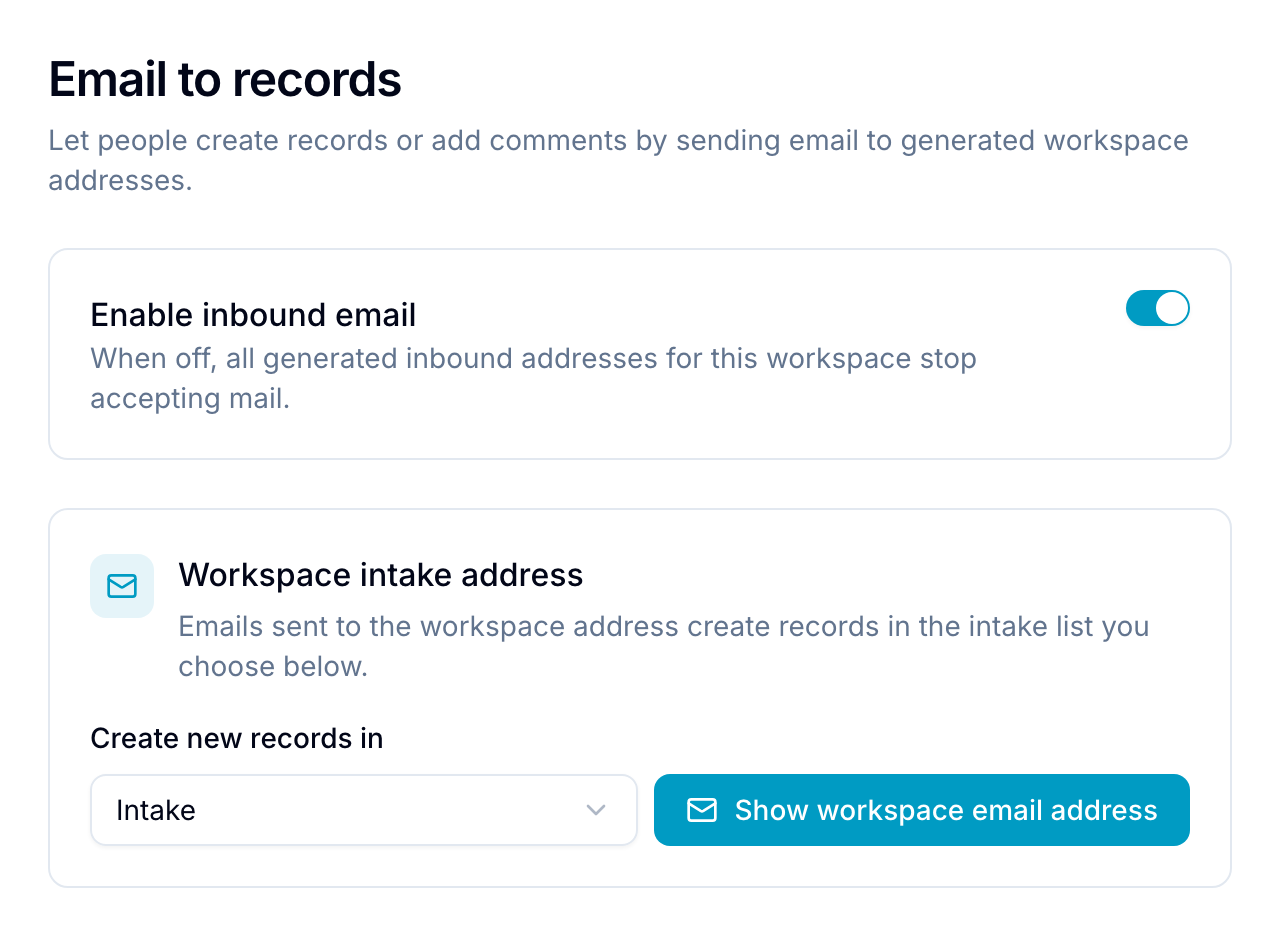
Turn off Enable inbound email to stop all workspace, list, and record addresses in that workspace immediately.
Find an email address
Blue provides three address types:
- Workspace address: Creates a record in the configured intake list. Open Workspace Settings > Email > Show workspace email address.
- List address: Creates a record in that list. Open the list menu and select Email address.
- Record address: Adds a comment to that record. Open the record toolbar menu and select Email address.
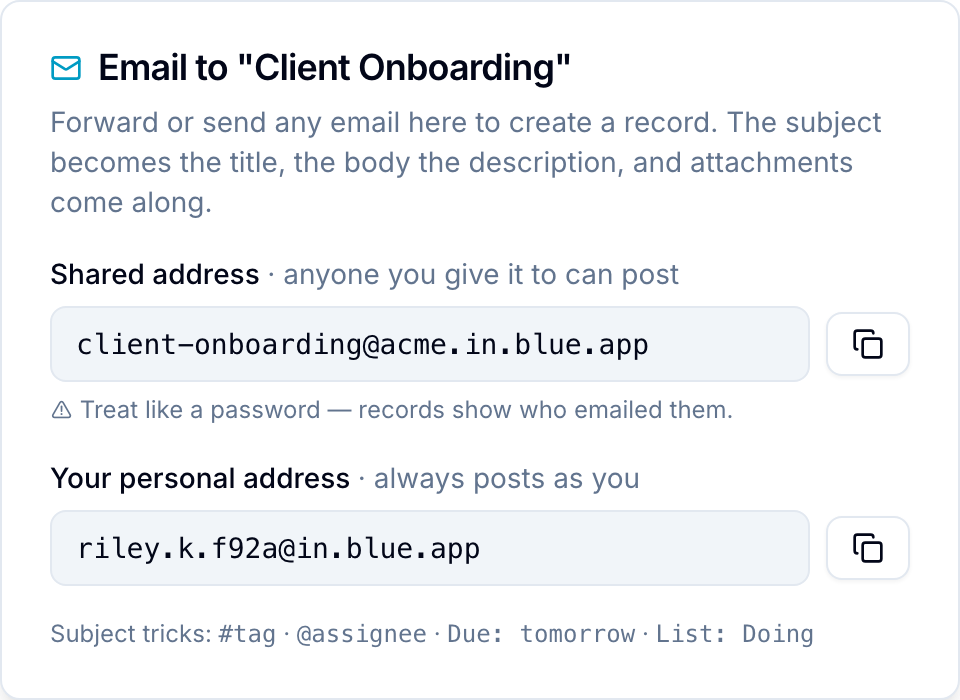
Each dialog shows two variants:
- Your personal address attributes every incoming message to you, regardless of its sending address. Keep it private as you would a password.
- The shared address accepts mail from anyone, including people outside Blue. The record or comment identifies the email sender.
Custom address names on Pro
On Pro, replace the random token in a shared workspace or list address with a custom name. For example, use support@yourorg.in.blue.app.
Custom names belong to the organization’s subdomain. Different organizations can use the same name, such as support, billing, or hello.
A custom name must contain 3-30 lowercase characters. It can contain letters, numbers, dots, dashes, and underscores, with punctuation between letters or numbers.
Blue converts input to lowercase. Blue also reports names that are unavailable because they are reserved for technical or security reasons.
Record ID address
The record dialog also shows a Record ID address. It combines the record ID with @in.blue.app.
This is the same ID shown in the record URL and by Copy record ID. The address does not change, unlike the random shared address.
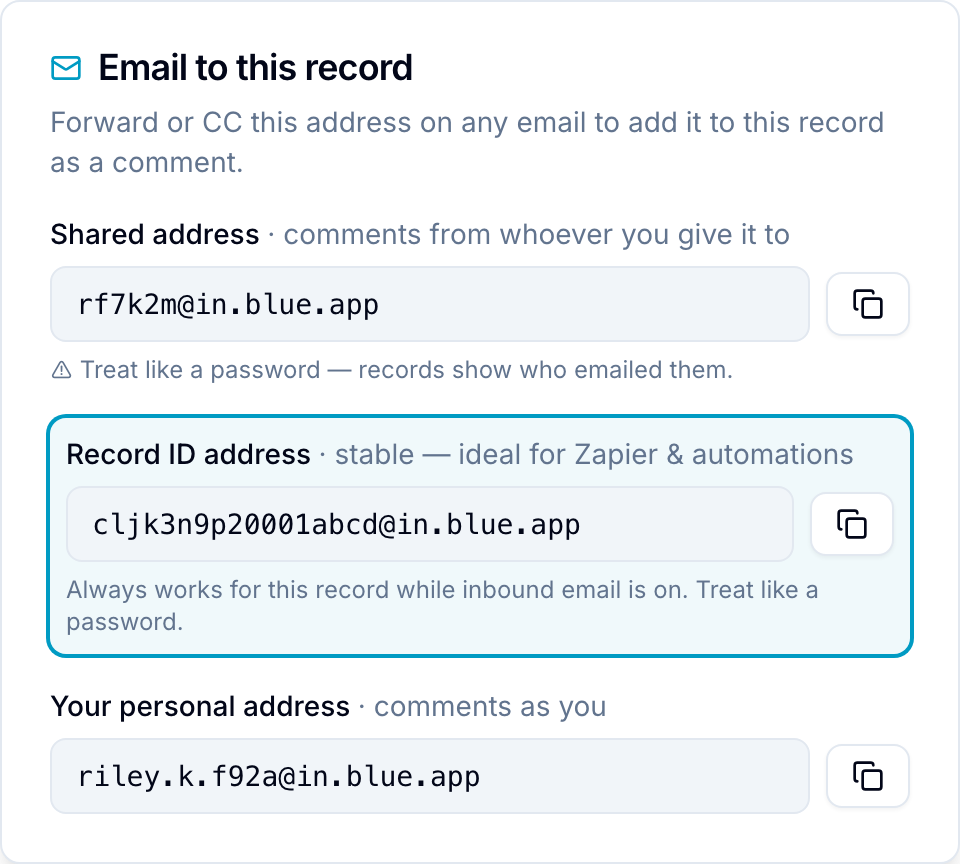
Use the record ID address when an automation already has the record ID. For example, set a Zapier, Make, or n8n email step recipient to {{record_id}}@in.blue.app.
The record ID address behaves like a shared address. Anyone with the address can add a comment, and the comment identifies the sender. Turning off Enable inbound email disables it.
Email content on a record
When an email creates a record:
- The subject becomes the record title. Blue removes reply prefixes such as
Re:andFwd:. - The body becomes the record description and keeps its formatting.
- Supported attachments become record files. Supported types include images, video, audio, PDFs, text, Office documents, and zip archives.
For a comment, Blue removes quoted text from earlier messages and keeps the new message. Blue adds attachments to the record’s files.
Comment trimming follows the RFC 3676 email signature convention. A line that contains only --, ---, ----, __, ==, or ++ starts a signature.
Blue removes that line and everything after it. Blue applies the same rule to common standalone closings, including Best regards,, Cheers,, and Sent from my iPhone.
Subject shortcuts
Use these shortcuts in the subject of an email that creates a record:
#tagapplies an existing workspace tag.@nameassigns an existing workspace member.Due: tomorrowsets a due date. Other supported examples includeDue: fridayandDue: 21 June.List: Doingsends the record to the named list. This shortcut works only with a workspace address.
Shortcuts match only existing tags and members. They do not create tags or members. Text that does not match remains in the title.
Sender attribution
- Mail to your personal address is always attributed to you.
- Mail to a shared address is attributed to a workspace member only if Blue verifies the sending address as theirs.
- Mail from an external or unverified sender has no member attribution. The record or comment shows the sender’s name and email address.
Permissions
Email uses the same permissions as the app. A role that cannot create records or comments cannot create them by email.
Custom roles get an Email to record section with two switches:
- Use email-to-record: Enables or disables the feature for the role.
- Allow shared workspace / list / record addresses: If disabled, members with this role see only their personal addresses. Their incoming email is attributed to them.
Turn off Forwarded emails in comments to hide email-created comments and sender details from the role.
Filtered email
Blue does not create records or comments from:
- Auto-replies and out-of-office messages
- Mailing list and bulk mail
- Blue notification emails
- Messages over 25 MB
- Duplicate deliveries of the same email