'%20fill='%23fff'%3e%3cpath%20d='M24%20364.337V24h141.909c25.481%200%2046.833%203.601%2064.056%2010.803%2017.222%207.191%2030.183%2017.279%2038.882%2030.24s13.049%2027.972%2013.049%2045.041c0%2012.961-2.72%2024.513-8.148%2034.645-5.429%2010.142-12.906%2018.534-22.431%2025.174-9.526%206.651-20.548%2011.299-33.069%2013.953v3.325c13.732.661%2026.451%204.383%2038.134%2011.134%2011.684%206.762%2021.077%2016.155%2028.168%2028.17%207.092%2012.025%2010.638%2026.231%2010.638%2042.628%200%2018.281-4.647%2034.601-13.952%2048.939-9.305%2014.35-22.762%2025.648-40.381%2033.908-17.607%208.248-38.992%2012.377-64.143%2012.377H24zm82.258-200.414h45.534c8.975%200%2016.947-1.497%2023.929-4.493s12.432-7.312%2016.374-12.961c3.931-5.65%205.902-12.466%205.902-20.439%200-11.409-4.041-20.384-12.135-26.926-8.082-6.53-18.995-9.801-32.738-9.801h-46.866v74.62zm0%20134.109h50.853c17.839%200%2030.987-3.381%2039.466-10.131%208.479-6.762%2012.708-16.178%2012.708-28.247%200-8.755-2.049-16.309-6.145-22.686-4.096-6.365-9.922-11.298-17.443-14.789-7.532-3.491-16.561-5.231-27.089-5.231h-52.339v81.095l-.011-.011zM388.865%2024v340.337h-81.256V24h81.256zm181.618%20230.159V109.082h81.091v255.255h-77.435v-47.529h-2.665c-5.649%2015.616-15.263%2028.004-28.829%2037.145-13.578%209.14-29.941%2013.71-49.102%2013.71-17.398%200-32.683-3.986-45.864-11.97-13.181-7.973-23.433-19.14-30.745-33.489s-11.023-31.165-11.133-50.437V109.082h81.256v146.739c.11%2013.854%203.766%2024.767%2010.968%2032.74s17.002%2011.96%2029.413%2011.96c8.082%200%2015.372-1.795%2021.847-5.407%206.486-3.601%2011.628-8.865%2015.45-15.781%203.821-6.927%205.737-15.318%205.737-25.174h.011zm224.376%20115.002c-26.704%200-49.718-5.286-69.044-15.869-19.337-10.583-34.181-25.703-44.532-45.371-10.362-19.668-15.537-43.069-15.537-70.215s5.208-49.445%2015.614-69.212c10.418-19.779%2025.096-35.174%2044.037-46.197s41.261-16.53%2066.962-16.53c18.17%200%2034.787%202.83%2049.851%208.48s28.08%2014.007%2039.048%2025.086%2019.501%2024.734%2025.591%2040.966%209.14%2034.81%209.14%2055.756v20.273H694.145v-47.199h146.226c-.11-8.633-2.159-16.342-6.145-23.104s-9.448-12.047-16.374-15.869-14.866-5.726-23.841-5.726-17.233%202.015-24.424%206.057c-7.202%204.052-12.906%209.537-17.112%2016.452-4.207%206.927-6.431%2014.757-6.652%2023.512v48.025c0%2010.417%202.049%2019.525%206.145%2027.332s9.911%2013.876%2017.454%2018.193c7.532%204.317%2016.506%206.486%2026.924%206.486%207.201%200%2013.731-1.002%2019.612-2.995%205.869-1.993%2010.912-4.923%2015.119-8.81%204.206-3.876%207.367-8.645%209.47-14.294l74.616%202.158c-3.105%2016.728-9.889%2031.264-20.361%2043.62s-24.182%2021.937-41.129%2028.743c-16.947%206.816-36.559%2010.219-58.825%2010.219l.011.033z'/%3e%3c/g%3e%3cdefs%3e%3cclipPath%20id='A'%3e%3cpath%20fill='%23fff'%20transform='translate(24%2024)'%20d='M0%200h892v345.161H0z'/%3e%3c/clipPath%3e%3c/defs%3e%3c/svg%3e)
Repeat
Create new copies of a record on a daily, weekly, monthly, or yearly schedule.
Repeating records create new records on a defined schedule. Use the copy options to control which data Blue copies from the original record.
Configure a repeating record
- Open the record that you want to repeat.
- Open the … menu.
- Select Repeat.
- Choose an interval and schedule.
- Choose the data to copy.
- Choose the destination workspace and list.
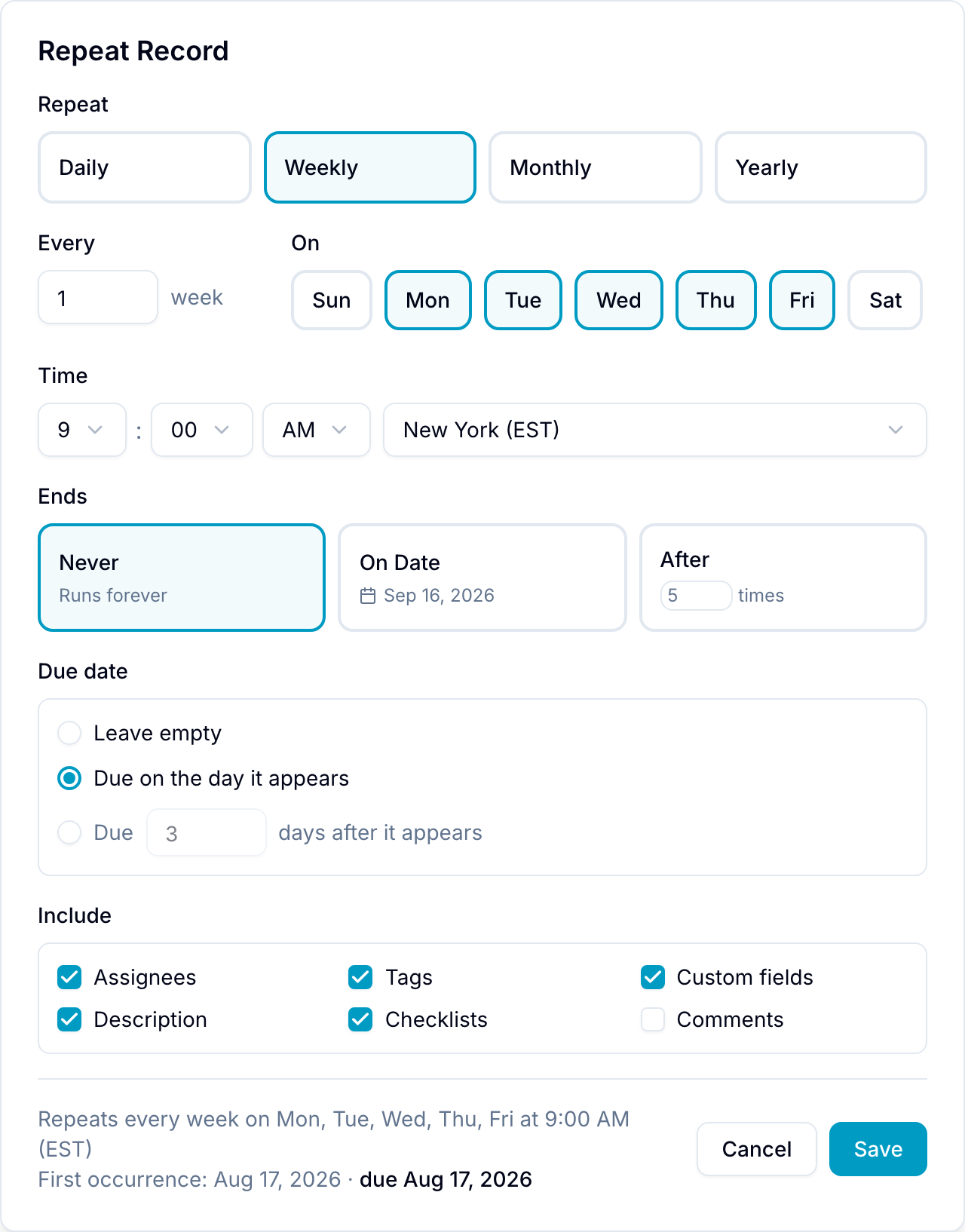
Repeat intervals
Choose one interval:
- Daily: Repeat every specified number of days.
- Weekly: Repeat every specified number of weeks on selected weekdays.
- Monthly: Repeat every specified number of months on a date, such as the 15th, or an ordinal weekday, such as the second Tuesday.
- Yearly: Repeat every specified number of years on a selected month and day.
Configure these options for any interval:
- Interval count: Set the frequency, such as every two weeks or every three months.
- Time: Set the creation hour, minute, and time zone. Blue selects your current time zone by default.
- End Condition: Select Never, a specific end date, or a number of repetitions.
Start date
Under Starts, choose when the series begins:
- Right away: The schedule creates its next occurrence as usual. This is the default.
- On Date: Blue creates no record before the date you select.
A start date delays the series without changing its pattern. Blue advances the schedule until an occurrence falls on or after the start date, so the interval, selected weekdays, time, and time zone stay as you configured them. The first record can therefore appear later than the start date itself.
Repeat: weekly on Wednesday, starting Sat 3 Feb

Sat 3 Feb  ──▶  start date, no record
Wed 7 Feb  ──▶  first record
Wed 14 Feb ──▶  next record
The start date is read in the schedule’s own time zone. Once it passes, the series runs exactly as it would without one.
Blue reports an error if the start date is after the end date, or if it is too far ahead for the repeat rule to reach.
Due date
Each new record can get its own due date, calculated from the day that record appears. Select one option under Due date:
- Leave empty: New records have no due date. This is the default, and it is what every schedule made before this option existed continues to do.
- Due on the day it appears: The new record is due on the day the schedule creates it.
- Due N days after it appears: The new record is due a set number of days later. Enter a whole number from 1 to 365.
The due date is calculated in the schedule’s own time zone and is always an all-day date. The schedule’s time of day sets when the work appears, not when it is due.
Repeat: monthly on day 20, due on the day it appears

20 Aug  ──▶  new record, due 20 Aug
20 Sep  ──▶  new record, due 20 Sep
20 Oct  ──▶  new record, due 20 Oct
Because the date comes from the schedule, finishing one occurrence late does not move the next one. Due-date automations apply to each new record as usual.
Copy options
Choose which data each new record receives:
- Description (included by default)
- Assignees (included by default)
- Tags (included by default)
- Custom fields (included by default)
- Checklists (included by default)
- Comments (excluded by default)
You can create the repeated records in a selected workspace and list.
Repeating record indicator
An active repeating record shows the repeat symbol on its card in the Board view. The symbol also appears inside the record.
Stop a repeating record
- Open the original repeating record.
- Select the repeat icon.
- Select Stop Repeating. Blue does not create any more repetitions.