'%20fill='%23fff'%3e%3cpath%20d='M24%20364.337V24h141.909c25.481%200%2046.833%203.601%2064.056%2010.803%2017.222%207.191%2030.183%2017.279%2038.882%2030.24s13.049%2027.972%2013.049%2045.041c0%2012.961-2.72%2024.513-8.148%2034.645-5.429%2010.142-12.906%2018.534-22.431%2025.174-9.526%206.651-20.548%2011.299-33.069%2013.953v3.325c13.732.661%2026.451%204.383%2038.134%2011.134%2011.684%206.762%2021.077%2016.155%2028.168%2028.17%207.092%2012.025%2010.638%2026.231%2010.638%2042.628%200%2018.281-4.647%2034.601-13.952%2048.939-9.305%2014.35-22.762%2025.648-40.381%2033.908-17.607%208.248-38.992%2012.377-64.143%2012.377H24zm82.258-200.414h45.534c8.975%200%2016.947-1.497%2023.929-4.493s12.432-7.312%2016.374-12.961c3.931-5.65%205.902-12.466%205.902-20.439%200-11.409-4.041-20.384-12.135-26.926-8.082-6.53-18.995-9.801-32.738-9.801h-46.866v74.62zm0%20134.109h50.853c17.839%200%2030.987-3.381%2039.466-10.131%208.479-6.762%2012.708-16.178%2012.708-28.247%200-8.755-2.049-16.309-6.145-22.686-4.096-6.365-9.922-11.298-17.443-14.789-7.532-3.491-16.561-5.231-27.089-5.231h-52.339v81.095l-.011-.011zM388.865%2024v340.337h-81.256V24h81.256zm181.618%20230.159V109.082h81.091v255.255h-77.435v-47.529h-2.665c-5.649%2015.616-15.263%2028.004-28.829%2037.145-13.578%209.14-29.941%2013.71-49.102%2013.71-17.398%200-32.683-3.986-45.864-11.97-13.181-7.973-23.433-19.14-30.745-33.489s-11.023-31.165-11.133-50.437V109.082h81.256v146.739c.11%2013.854%203.766%2024.767%2010.968%2032.74s17.002%2011.96%2029.413%2011.96c8.082%200%2015.372-1.795%2021.847-5.407%206.486-3.601%2011.628-8.865%2015.45-15.781%203.821-6.927%205.737-15.318%205.737-25.174h.011zm224.376%20115.002c-26.704%200-49.718-5.286-69.044-15.869-19.337-10.583-34.181-25.703-44.532-45.371-10.362-19.668-15.537-43.069-15.537-70.215s5.208-49.445%2015.614-69.212c10.418-19.779%2025.096-35.174%2044.037-46.197s41.261-16.53%2066.962-16.53c18.17%200%2034.787%202.83%2049.851%208.48s28.08%2014.007%2039.048%2025.086%2019.501%2024.734%2025.591%2040.966%209.14%2034.81%209.14%2055.756v20.273H694.145v-47.199h146.226c-.11-8.633-2.159-16.342-6.145-23.104s-9.448-12.047-16.374-15.869-14.866-5.726-23.841-5.726-17.233%202.015-24.424%206.057c-7.202%204.052-12.906%209.537-17.112%2016.452-4.207%206.927-6.431%2014.757-6.652%2023.512v48.025c0%2010.417%202.049%2019.525%206.145%2027.332s9.911%2013.876%2017.454%2018.193c7.532%204.317%2016.506%206.486%2026.924%206.486%207.201%200%2013.731-1.002%2019.612-2.995%205.869-1.993%2010.912-4.923%2015.119-8.81%204.206-3.876%207.367-8.645%209.47-14.294l74.616%202.158c-3.105%2016.728-9.889%2031.264-20.361%2043.62s-24.182%2021.937-41.129%2028.743c-16.947%206.816-36.559%2010.219-58.825%2010.219l.011.033z'/%3e%3c/g%3e%3cdefs%3e%3cclipPath%20id='A'%3e%3cpath%20fill='%23fff'%20transform='translate(24%2024)'%20d='M0%200h892v345.161H0z'/%3e%3c/clipPath%3e%3c/defs%3e%3c/svg%3e)
Printing Records
Create PDFs from record data with reusable templates, or export up to 250 filtered records into one PDF.
Printing records places record data into a reusable PDF template. Use it for documents such as invoices, work orders, receipts, and confirmations.
This video shows the feature:
Create a PDF template
A Workspace Owner or Project Administrator must upload and configure the PDF template.
- Select the workspace settings icon next to the workspace name in the top bar.
- Open PDF Templates.
- Select Upload PDF.
- Choose the PDF template file.
- Drag each required workspace field to its position on the template.
A PDF template can contain up to 10 pages.
The following table shows which fields a template supports.
| Field Type | Supported |
|---|---|
| Title | ✅ |
| Description | ✅ |
| Start Date | ✅ |
| Due Date | ✅ |
| Assignees | ✅ |
| Tags | ✅ |
| List | ✅ |
| Workspace | ✅ |
| Created By | ✅ |
| Completed By | ✅ |
| Created At | ✅ |
| Updated At | ✅ |
| Completed At | ✅ |
| Printed On | ✅ |
| Checkbox | ✅ |
| Date | ✅ |
| Currency | ✅ |
| Percent | ✅ |
| File | Limited |
| Formula | ✅ |
| Single Select | ✅ |
| Multiple Select | ✅ |
| Time Duration | ✅ |
| Lookup | ✅ |
| Single Line Text | ✅ |
| Multiple Line Text | ✅ |
| Phone | ✅ |
| ✅ | |
| URL | ✅ |
| Location | ✅ |
| Country | ✅ |
| Number | ✅ |
| Unique ID | ✅ |
| Reference | ✅ |
| Table | ✅ |
| Rating | ❌ |
| Button | ❌ |
| Currency Conversion | ❌ |
For a File field, Blue renders one attached PNG or JPEG image. Other attached file types do not appear in the generated PDF. A Table field renders a text summary of its rows.
Format template fields
Select a field on the template to change its font size and text colour in the field toolbar. Each field stores its own settings.
Templates keep the actual size of each page. Blue supports A4, Legal, Letter, and landscape pages. One template can contain pages with different sizes.
Create a PDF from one record
- Open the record.
- Open the … menu in the record toolbar.
- Select Print.
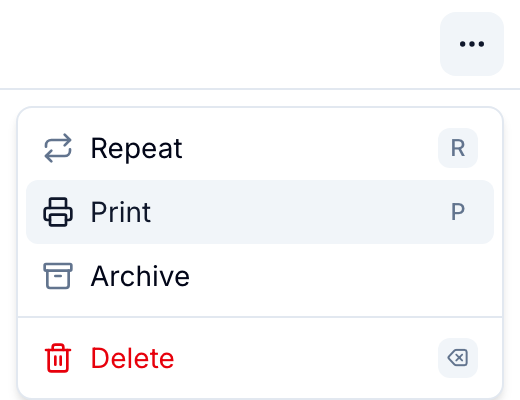
- Choose a PDF template.
- Review the preview and verify the record data.
- Select Download to save the PDF, or select Print to send it to a connected printer.
Blue places the record’s supported field values in the corresponding template fields.
Export filtered records to one PDF
Use the active workspace filters to select records for a merged PDF.
- Apply the filters you want in the workspace’s records view.
- Open Workspace Settings > Import & Export.
- Find the PDF export option.
- Choose a template.
- Start the export.
The export runs in the background. When it finishes, Blue emails you a download link.
A single PDF export supports up to 250 records. For a larger set, use narrower filters or CSV export.
Common documents
- Invoices and billing documents
- Work orders and service reports
- Receipts and confirmations
- Audit, compliance, and archive documents