Date & Time Defaults
Set the date and time display defaults that organization members inherit.
The organization owner and Organization Administrators can set the display defaults for the organization.
- Open Settings > General.
- Find Date & Time Defaults.
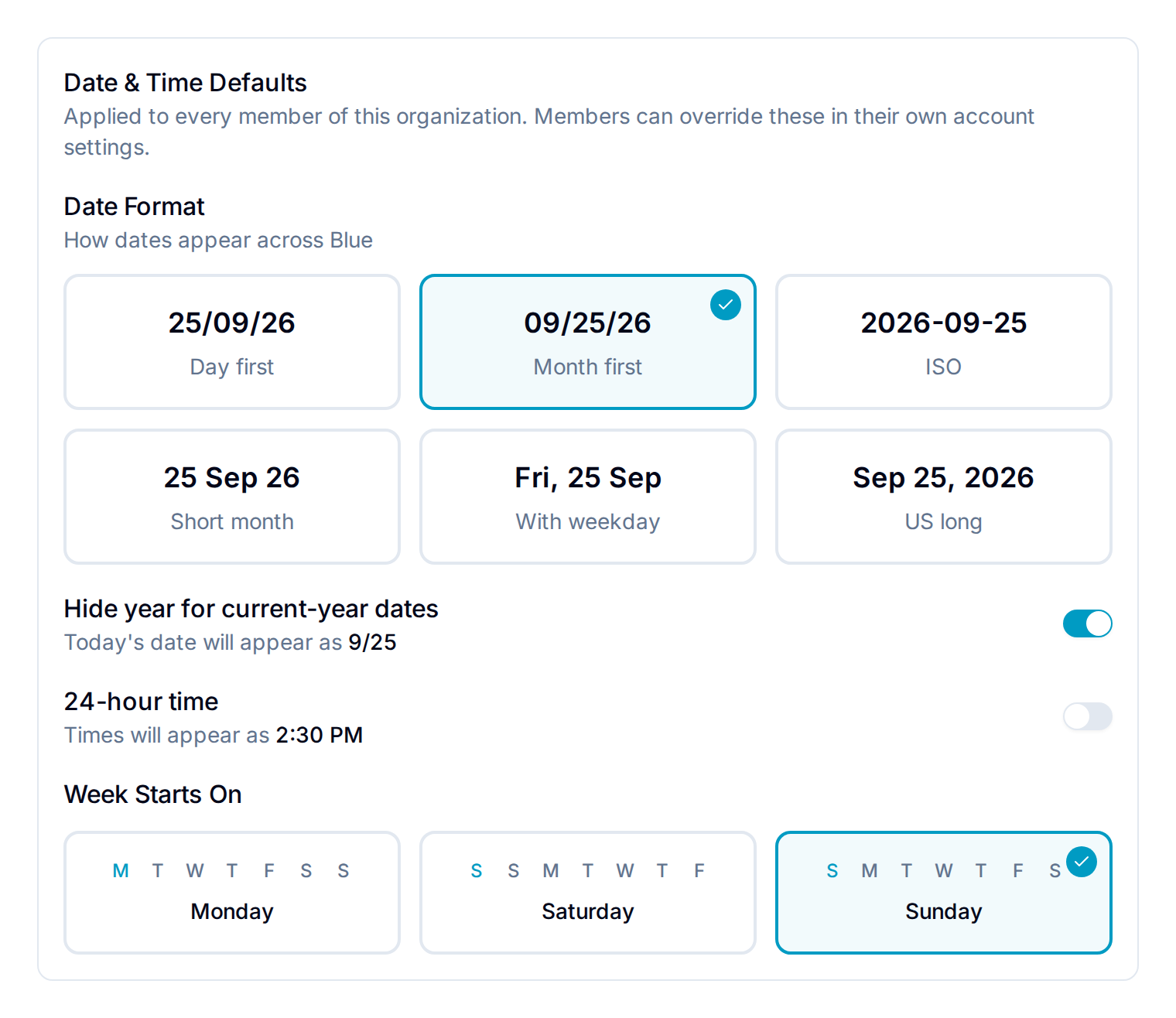
- Choose the date format, first day of the week, year display, and 12- or 24-hour time.
Blue saves each change as you make it.
Set date and time defaults
Set the date format, first day of the week, year display, and 12- or 24-hour time for the whole organization. Every member inherits these values until they pick their own in their account settings.
- Changes apply to members the next time they load the organization.
- A member who already chose a value keeps it. Members can reset a setting to follow the organization again.
- Timezone and language have no organization default. They stay personal.
Personal overrides
A member can select a different value in Profile Settings. That choice applies to their account across organizations. Resetting a personal setting to the organization default makes it follow the current organization’s setting again.