General Settings
Change your organization name, URL, appearance, and workspace terminology, or delete the organization.
General settings apply to your current organization. The organization owner and Organization Administrators can edit them. Only the owner can delete the organization.
Open Settings > General in the organization sidebar.
Change organization settings
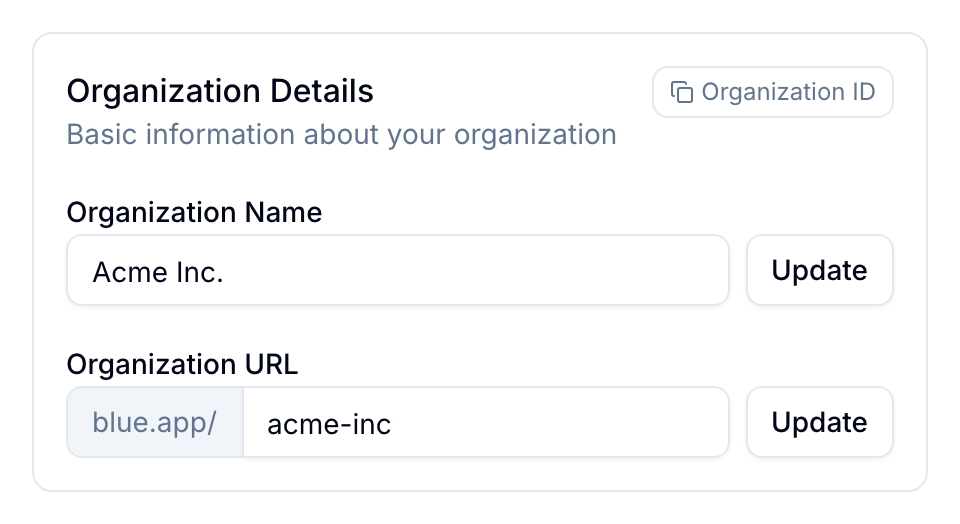
- Organization Name: Enter the name, then select Update.
- Organization URL: Change the URL slug used to open the organization. Review the confirmation before saving.
- Organization Image: Upload and crop an image, or remove the current image.
- Organization Color: Choose a preset or custom color.
- Bold Top Bar: Apply the organization color to the header.
- Bold Background: Apply the organization color to the app background.
Changing the organization URL also changes the organization segment of custom inbound email addresses. Update the addresses used by people and external services after the change.
Rename workspaces across the organization
Under Workspace Terminology, enter the Singular and Plural names, then select Save. For example, use Project and Projects.
Use Reset to return to the default terminology. See Custom Terminology for terminology at other levels.
Other general settings
- Date & Time Defaults set the display values members inherit.
- Direct Messages controls direct messaging for the organization. See Collaboration.
- Extended Privacy excludes the organization from the conversion-data sharing described in the Privacy Policy.
Plan requirements
Extended Privacy requires Pro or Enterprise.
Delete the organization
Only the organization owner can delete it.
- In Settings > General, select Delete Organization.
- Review the deletion warning and confirm that you understand it.
- Request the security code sent to your email.
- Enter the code and the organization name.
- Confirm the deletion.