Members
Manage organization members, inspect sign-in methods, and review workspace memberships.
The organization owner and Organization Administrators can manage organization members. Open Settings > Users to see the list.
Organization membership and workspace membership are separate. Assigning a workspace role controls access inside that workspace; see Roles & Permissions.
Invite members
Use the invitation control in Users to choose the role, enter email addresses, and select the workspaces to include. Review the recipients and workspace access before sending the invitations.
Plan limits
Invited users and pending invitations count toward your tier’s user limit. See Billing.
Manage organization users
Remove a user
- Open the organization settings.
- Select Users.
- Remove the member.
- Confirm the removal. Blue revokes the member’s access to the organization.
The removed member’s comments and files remain visible in their workspaces.
The organization owner cannot be removed this way, and an administrator cannot change the owner’s access level.
View a member’s sign-in methods
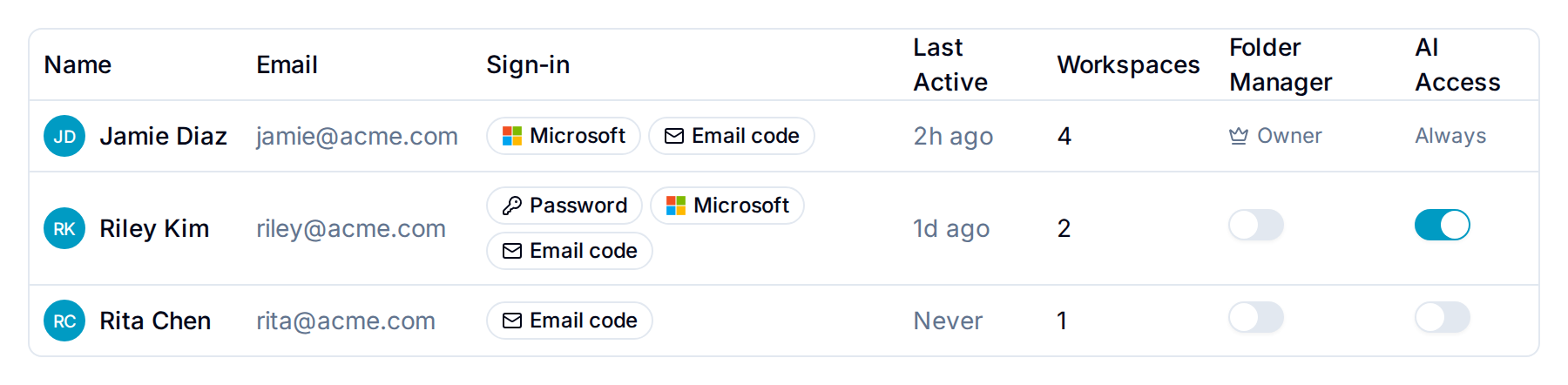
The Sign-in column lists every way a member can sign in: Password, Google, Microsoft, or Email code. A member can have more than one. Not signed in means the member accepted no invitation yet.
Email code always shows for a member who has signed in, because the email code works for every account.
Use this column to check that everyone uses your identity provider. A member who still shows Password or Email code can bypass the multi-factor authentication your provider enforces. Ask them to open Account → Access and remove the password. The email code is always available.
The organization owner and Organization Administrators see this column. Changes a member makes to their sign-in methods appear within five minutes.
View a user’s workspace memberships
Open a member’s profile to view their workspace memberships. Each entry shows the access level or custom role and the date the member joined.
The list is read-only and excludes archived or template workspaces. The organization owner and Organization Administrators can view any member’s list. Everyone else sees only their own.
Find and join workspaces you are not in
The organization owner and Organization Administrators can list every workspace in the organization that they have not joined.
- Point to the workspace list header in the sidebar and select the filter icon.
- Select Available to join. The count beside it shows how many workspaces you are not in.
Select a workspace in the list to open the join confirmation, then select Join as admin.
Blue adds you to the workspace as an administrator and emails the workspace owner. You can leave the workspace at any time.
Edit any workspace’s settings
The organization owner and Organization Administrators can open and save the Settings tab of any workspace in the organization. This includes workspaces they are not a member of, and workspaces where they hold a lower access level.
This covers everything on that tab, such as the inbound email address, the GitHub sync, the AI configuration, and the workspace color.